
Neuroglancer Short Links

Neuroglancer Short Links allow you to save and share specific Neuroglancer viewer states, including layer visibility, color settings, zoom levels, and camera positions. This makes it easy to collaborate with colleagues by pointing them to exactly what you want them to see in your imaging data.
What are Neuroglancer Short Links?
Section titled “What are Neuroglancer Short Links?”- Persistent viewer states: Save your exact Neuroglancer configuration including visible layers, colors, and camera position
- Shareable URLs: Generate short, stable links that can be shared with internal collaborators
- Updateable: Edit the viewer state associated with an existing short link without changing the URL
- Collaboration-focused: Ensure everyone sees exactly the same view of your data
Prerequisites
Section titled “Prerequisites”Before creating Neuroglancer Short Links, you need:
- A data link for your Zarr, OME-Zarr, or N5 image (see Creating Data Links)
- The image opened in Neuroglancer viewer
Creating a Neuroglancer Short Link
Section titled “Creating a Neuroglancer Short Link”Step 1: Prepare Your Neuroglancer View
Section titled “Step 1: Prepare Your Neuroglancer View”-
Create a data link for your image
Navigate to your Zarr, OME-Zarr, or N5 directory and create a data link if one doesn’t already exist. -
Open in Neuroglancer
Click the Neuroglancer viewer icon under the image thumbnail to open your data in Neuroglancer. -
Configure your view
Adjust the image to appear exactly as you want collaborators to see it.
Step 2: Create the Short Link
Section titled “Step 2: Create the Short Link”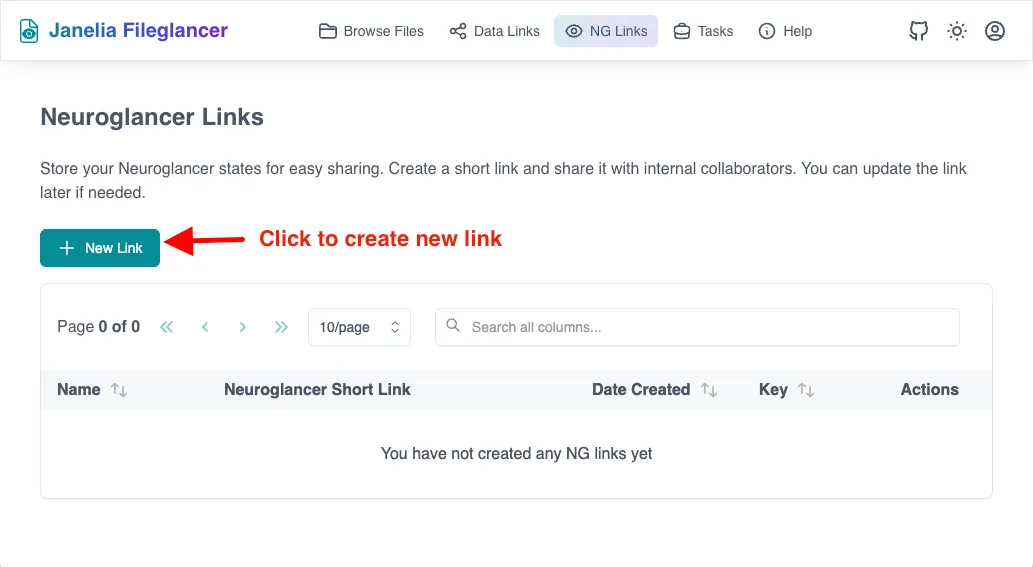
-
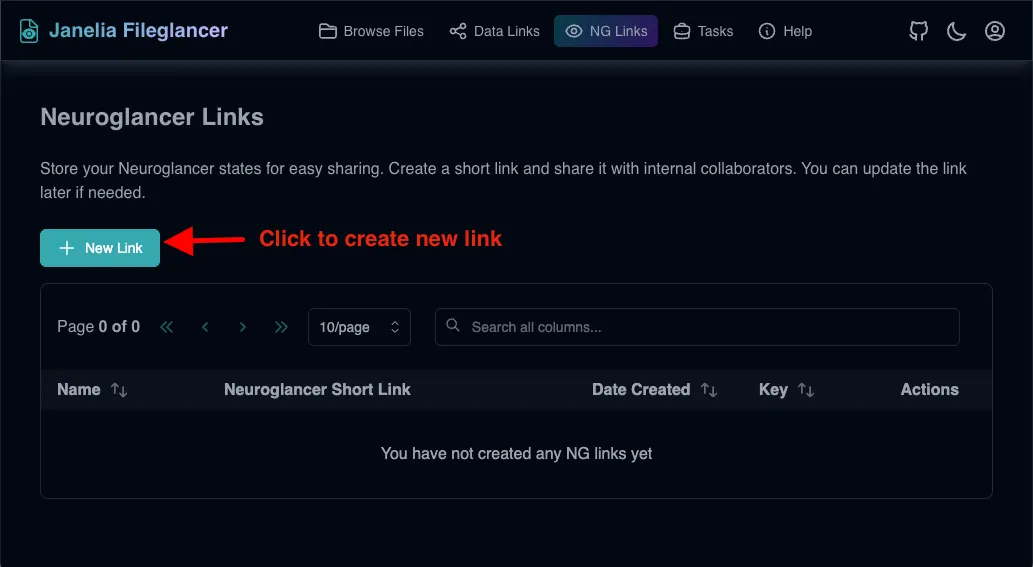
Navigate to the NG Links page
Return to Fileglancer and click “NG Links” in the top navigation bar. -
Click ”+ New Link” button
This opens the Create Neuroglancer Short Link dialog. -
Choose your link mode
Select either URL Mode or State Mode depending on how you want to save your viewer state.
URL Mode
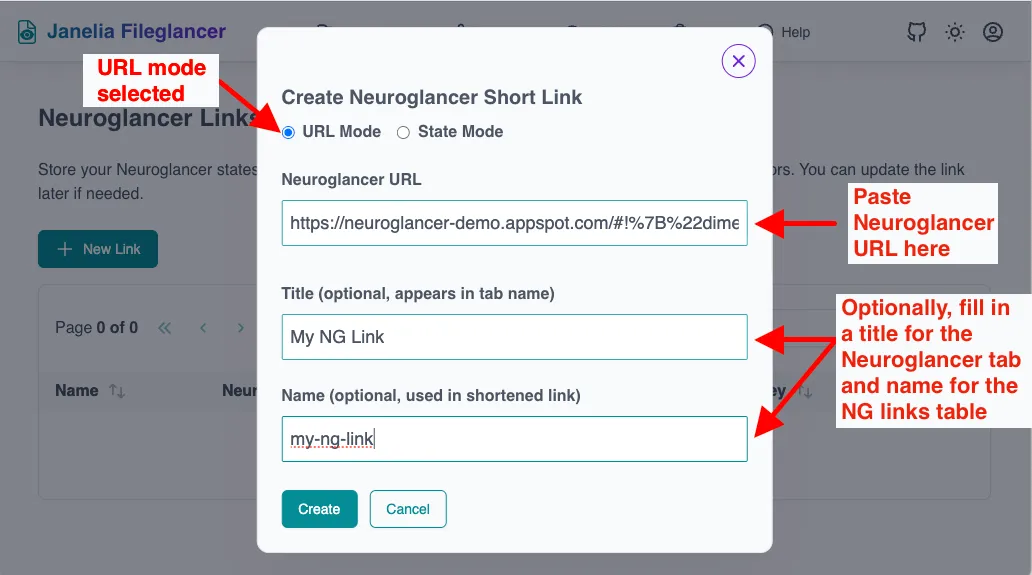
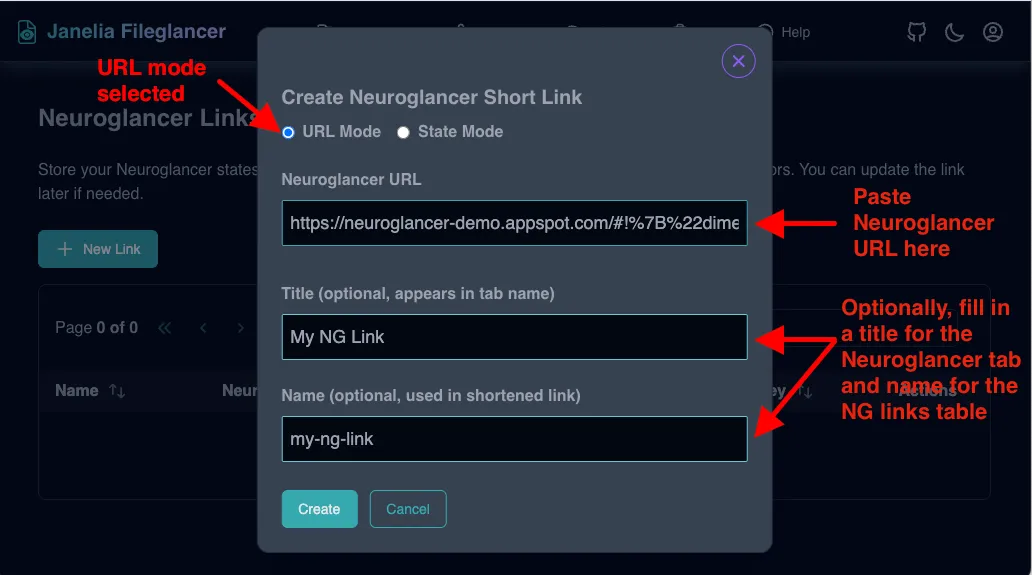
Section titled “URL Mode”Use URL Mode to save the complete Neuroglancer URL with embedded state.
-
Copy the Neuroglancer URL
From your Neuroglancer browser tab, copy the full URL from the address bar. This URL contains all your viewer settings encoded in the URL parameters. -
Paste into the Neuroglancer URL field
Paste the complete URL into the dialog. -
Add optional metadata
Title (optional): Appears in the Neuroglancer browser tab when the link is opened Name (optional): Appears in the NG Links table for easy identification. If not provided, a random key will be used as the name. -
Click “Create”
Your short link will be generated and added to the NG Links table.
State Mode
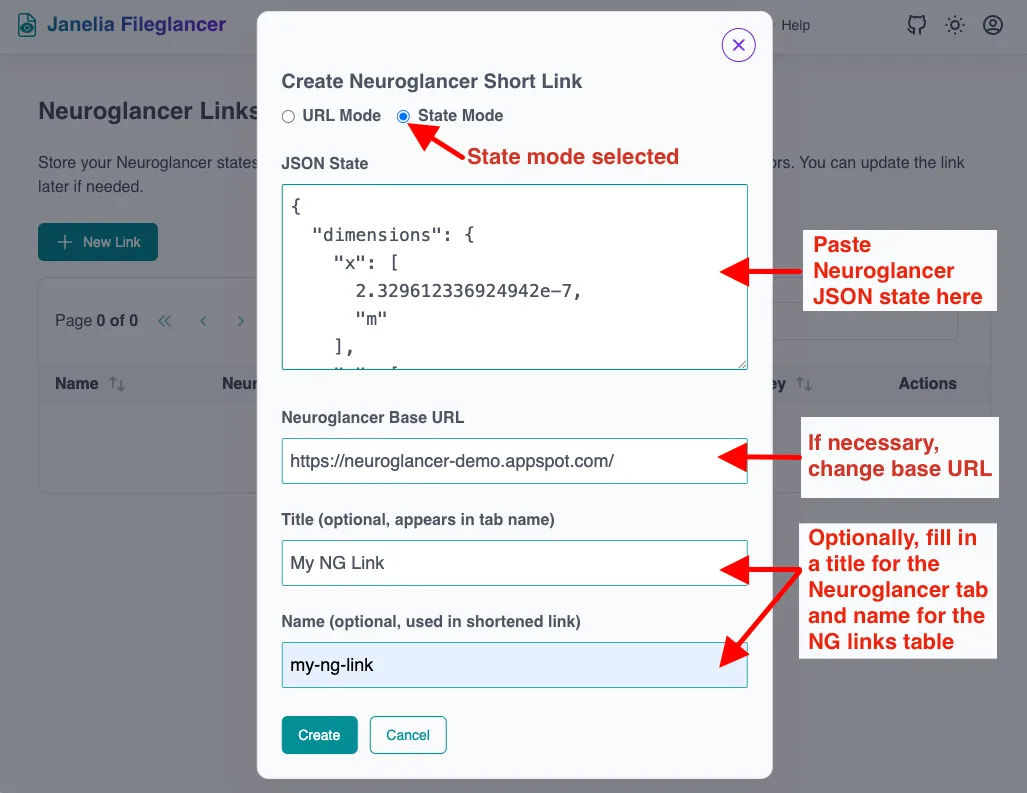
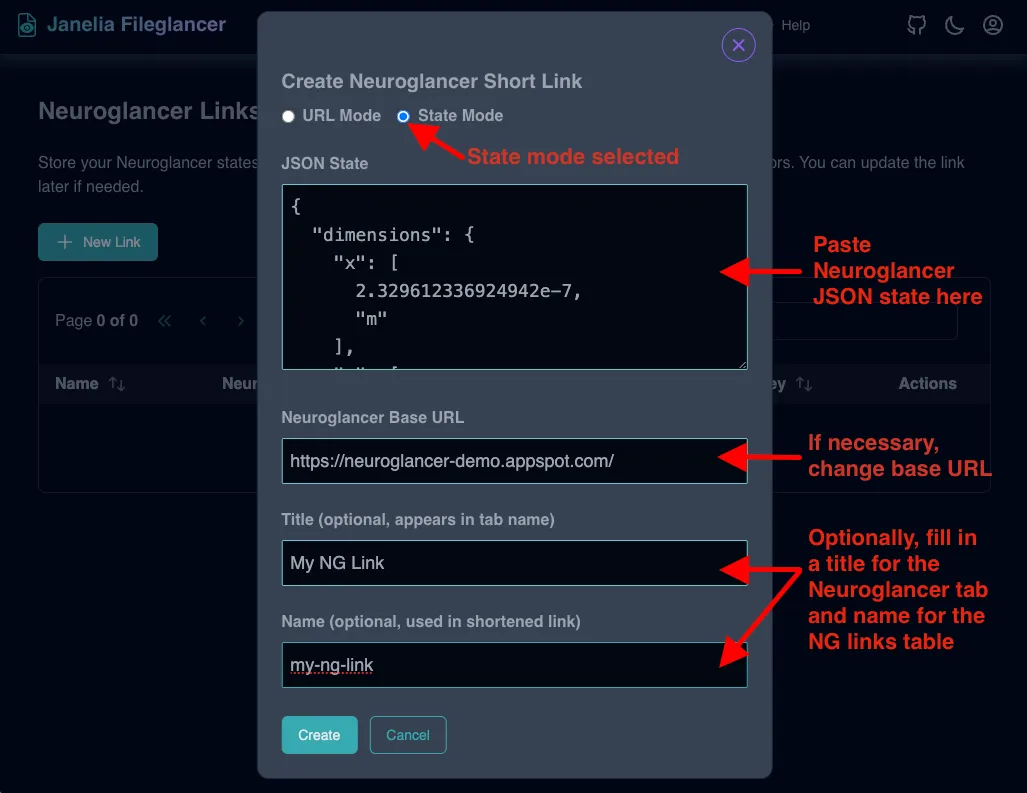
Section titled “State Mode”Use State Mode when you want to save just the JSON state separately from the base URL.
-
Copy the JSON state from Neuroglancer
In Neuroglancer, access the JSON state (typically through the state sharing dialog or browser console). -
Paste into the JSON State field
Paste the JSON state object into the large text area. -
Verify the Neuroglancer Base URL
Check that the base URL field contains the correct Neuroglancer instance URL. Adjust if necessary (e.g.,https://neuroglancer-demo.appspot.com/). -
Add optional metadata
Title (optional): Appears in the Neuroglancer browser tab Name (optional): Appears in the NG Links table for identification -
Click “Create”
Your short link will be generated and added to the NG Links table.
Managing Your Neuroglancer Short Links
Section titled “Managing Your Neuroglancer Short Links”Viewing All Links
Section titled “Viewing All Links”All your Neuroglancer Short Links appear in a table on the NG Links page. The table displays:
- Name: The custom name you provided, or the auto-generated key
- Neuroglancer Short Link: The shortened URL that opens the viewer
- Date Created: When the link was created
- Key: The unique identifier for this link
- Actions: Options menu for managing the link
Opening a Link in Neuroglancer
Section titled “Opening a Link in Neuroglancer”- Click the Neuroglancer Short Link
In the table, click on the blue link in the “Neuroglancer Short Link” column to open the viewer in a new tab.
Sharing with Collaborators
Section titled “Sharing with Collaborators”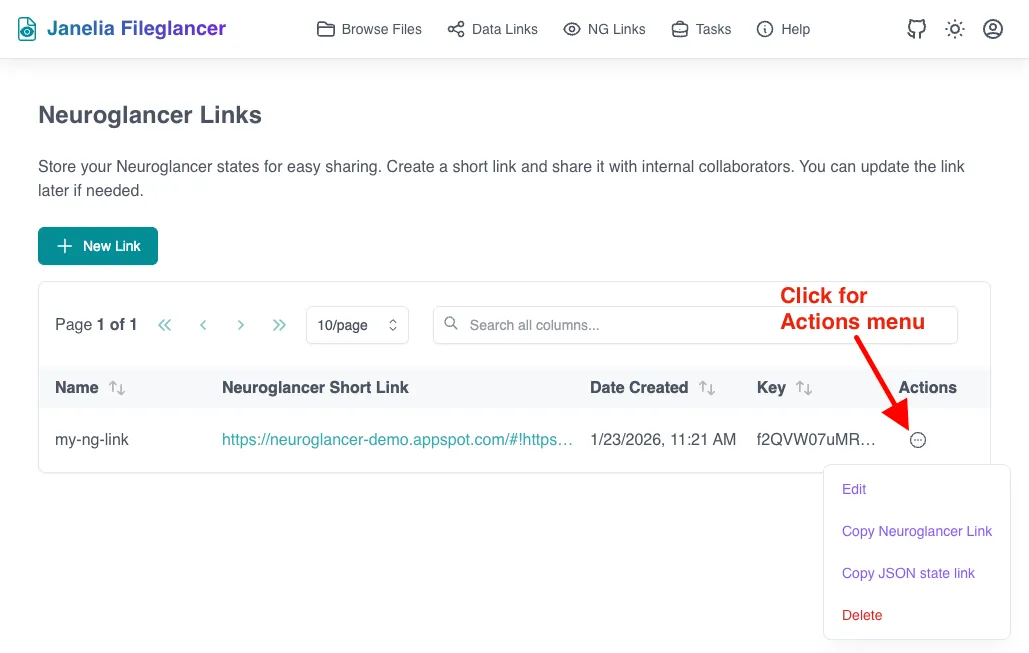
-
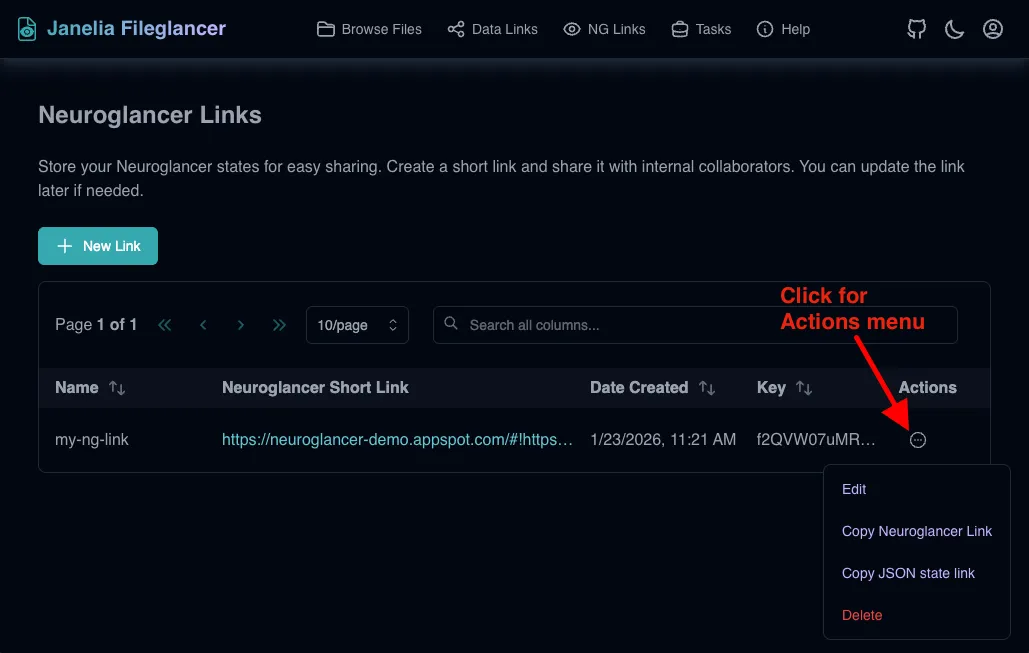
Click the Actions button
On the right side of the table row for your link. -
Select “Copy Neuroglancer Link”
The shortened URL is copied to your clipboard. -
Share the link
Send the link to your collaborators. Anyone with access to the Janelia network can use the link to see exactly what you configured in Neuroglancer. -
Alternative: Copy JSON state link
You can also select “Copy JSON state link” from the actions menu to share a link to just the state data.
Updating an Existing Link
Section titled “Updating an Existing Link”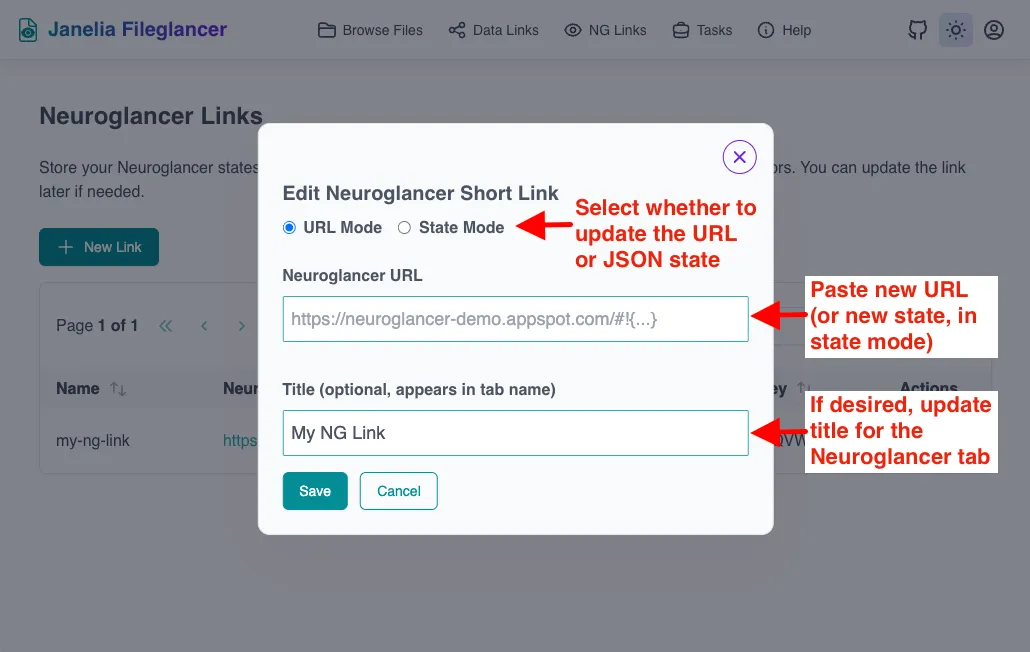
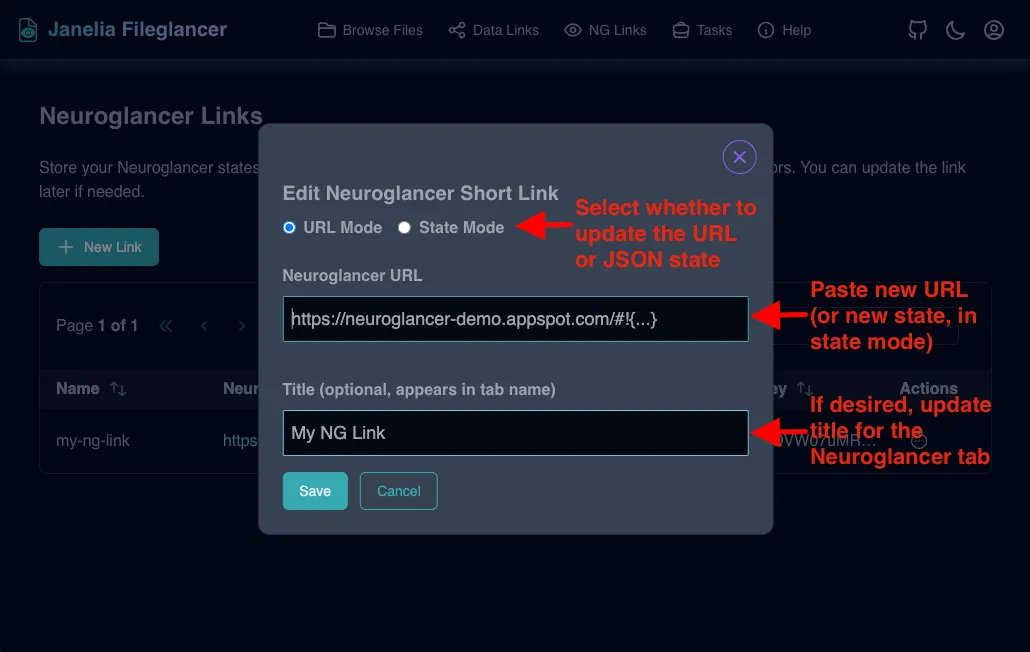
If you need to update the viewer state for an existing short link:
-
Make changes in Neuroglancer
Open your link in Neuroglancer and adjust the view as needed. -
Click the Actions button
On the right side of the table row for your link. -
Select “Edit”
This opens the Edit Neuroglancer Short Link dialog. -
Update the state
In URL Mode: Paste the new Neuroglancer URL
In State Mode: Paste the updated JSON state and verify the base URL -
Update the title if needed
Optionally modify the title that appears in the browser tab. -
Click “Save”
The same short link URL will now point to your updated viewer state. Collaborators using the original link will automatically see the new configuration.
Deleting a Link
Section titled “Deleting a Link”-
Click the Actions button
On the right side of the table row for your link. -
Select “Delete”
Confirm the deletion in the dialog that appears. -
Link is revoked
The short link will immediately stop working. Anyone with the link will no longer be able to access the viewer state.
Troubleshooting
Section titled “Troubleshooting”Link doesn’t open in Neuroglancer
Section titled “Link doesn’t open in Neuroglancer”Problem: Clicking the short link returns an error or doesn’t load the viewer
Solutions:
- Verify you’re on the Janelia network
- Check that the underlying data link is still active (visit the Data Links page)
- Ensure the source data hasn’t been moved or deleted
- Try copying the link and opening it in a new browser tab
Can’t create a new link
Section titled “Can’t create a new link”Problem: The ”+ New Link” button doesn’t work or the dialog won’t submit
Solutions:
- Verify you have a valid Neuroglancer URL or JSON state to paste
- Check that your session is still authenticated (try refreshing the page)
- Ensure the JSON state is valid JSON format (use a JSON validator if needed)
Collaborators can’t access the link
Section titled “Collaborators can’t access the link”Problem: Others report that the link doesn’t work for them
Solutions:
- Confirm they’re on the Janelia internal network
- Verify the link is still active in your NG Links table
- Check that the underlying data link is still active (visit the Data Links page)
- Try copying and resharing the link in case of clipboard issues
Best Practices
Section titled “Best Practices”- Use descriptive names: Give your links meaningful names so you can easily find them later
- Add titles: Include descriptive titles so collaborators know what they’re viewing when they open the link
- Document your links: Keep notes about what each link demonstrates, especially if you have many links
- Clean up old links: Regularly review your NG Links table and delete links that are no longer needed
- Test before sharing: Always open your link yourself before sending it to others to ensure it works as expected
- Maintain data links: Remember that Neuroglancer Short Links depend on the underlying data links being active
Related Features
Section titled “Related Features”- Creating Data Links - Learn how to create the data links needed for Neuroglancer Short Links
- Navigating Files - Find and browse your imaging data in Fileglancer