
Creating Views

A View is a saved Neuroglancer scene: the datasets it shows, plus the layer colors, visibility, zoom level, and camera position. You build a View from datasets in the file browser, open it in a Neuroglancer viewer inside Fileglancer, and share it with a link. When you edit and save a View, everyone with its link sees the new version.
What are Views?
Section titled “What are Views?”- Built from your files: Pick datasets in the file browser. Fileglancer creates the Data Links and the Neuroglancer layers for you.
- Opened in Fileglancer: Views open in a Neuroglancer viewer embedded in Fileglancer.
- Editable: Change the View in the viewer, add or remove datasets, and save. The link stays the same.
- Shareable: Each View has a link that you can send to collaborators.
Before you start
Section titled “Before you start”Views work with Zarr, OME-Zarr, and N5 datasets. You can add other folders to a View, but Neuroglancer can’t load them as layers. Fileglancer lists them as sources only.
Each dataset in a View is served through a Data Link. If a dataset doesn’t have one yet, Fileglancer creates it when you create the View. Unless you turned on automatic Data Links in your preferences, Fileglancer asks first. For more about Data Links, see Creating Data Links.
Create a View
Section titled “Create a View”You create a View in two stages. First you collect datasets in the Layer Cart, then you create the View from the cart.
Step 1: Add datasets to the Layer Cart
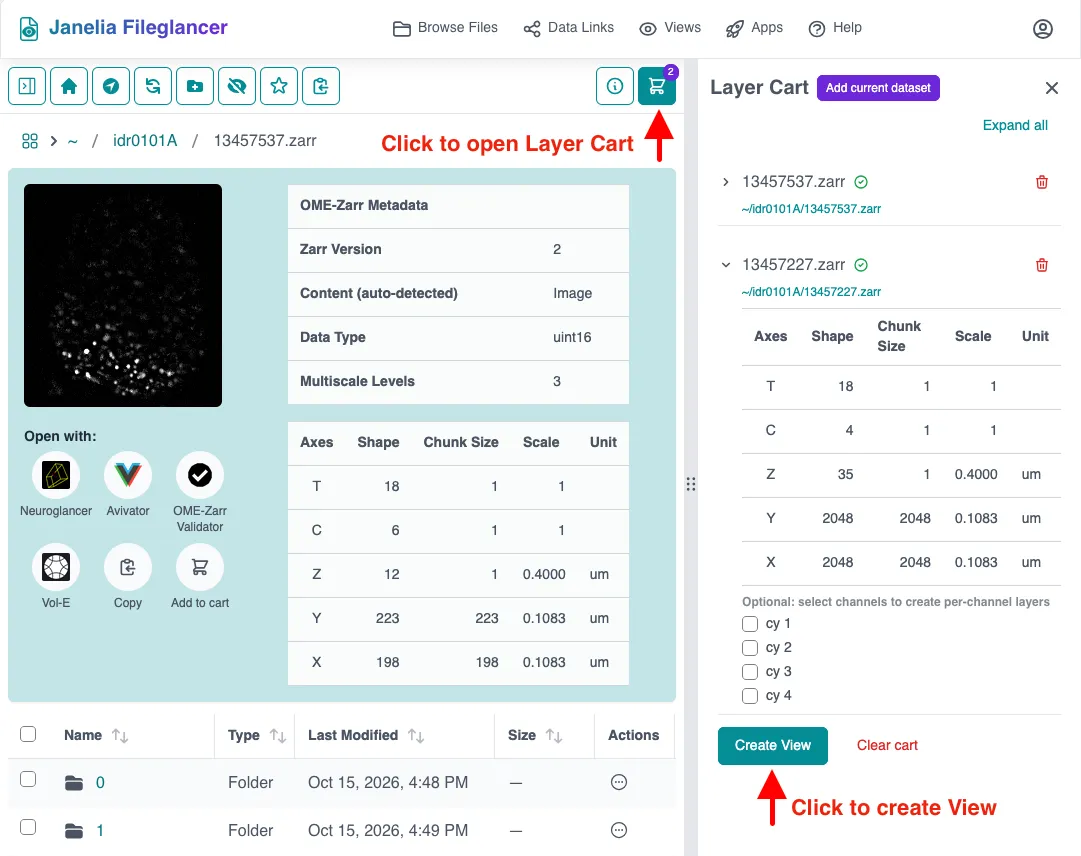
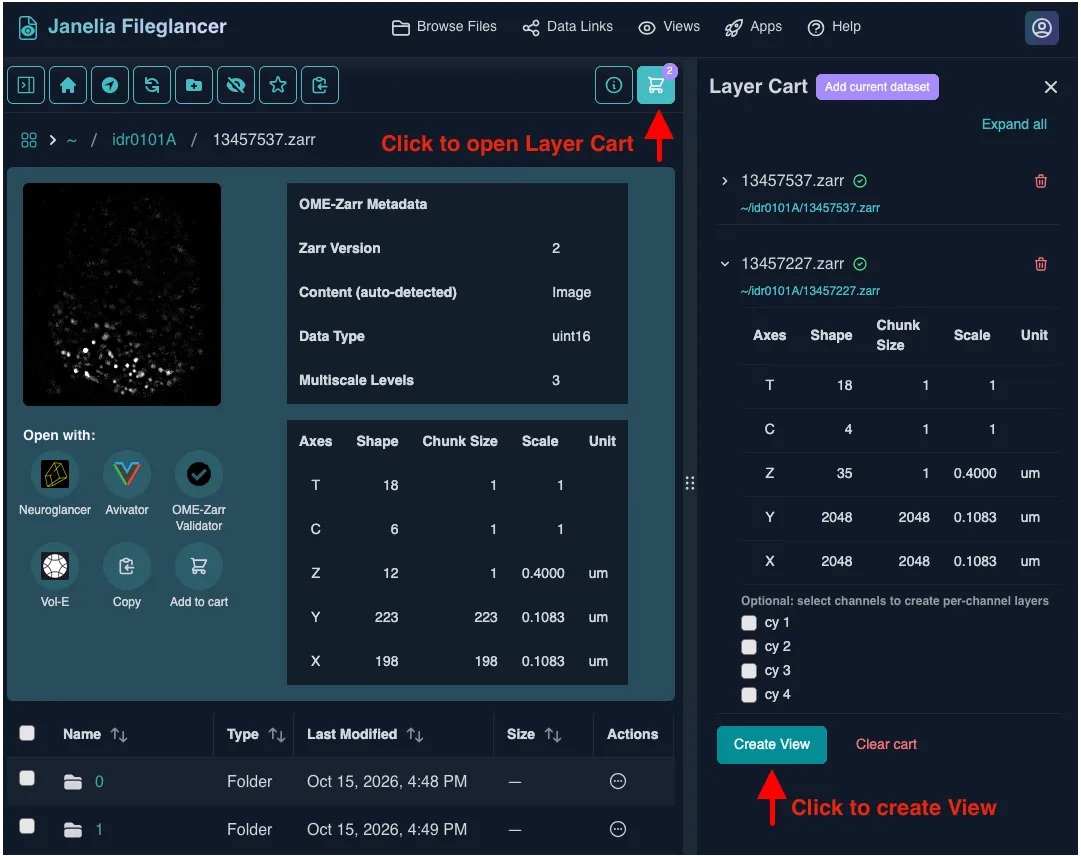
Section titled “Step 1: Add datasets to the Layer Cart”The Layer Cart is a panel on the right side of the Browse page. To open it, click the cart icon (View Layer Cart) in the file browser toolbar.
Add datasets to the cart in any of these ways:
- One folder: Right-click a folder in the file list, or click the icon in its Actions column, and select Add to cart from the context menu.
- Several folders: Check the boxes next to the folders, then click Add N to cart in the selection bar that appears at the bottom of the screen.
- The dataset you’re viewing: Under the image thumbnail of a Zarr or N5 dataset, click Add to cart.
- From the cart panel: Navigate to a dataset folder and click Add current dataset.
The cart keeps its contents until you create a View or clear it, so you can collect datasets from several folders and file shares.
Step 2: Review the cart
Section titled “Step 2: Review the cart”Each dataset in the cart shows an icon that tells you whether it will load as a Neuroglancer layer. In the cart you can:
- Pick channels: Expand a multichannel OME-Zarr dataset and select channels to create a layer for each channel. This is optional. If you don’t select channels, the whole dataset becomes one layer.
- Check dimensions: A warning icon marks a dataset whose dimensions differ from the first dataset in the cart. The View takes its dimensions from the first dataset, so a mismatched dataset might not line up with the others. To see a dataset’s full dimensions, expand it. To expand every dataset at once, click Expand all.
- Remove a dataset: Click the trash icon on the dataset’s row.
Step 3: Create the View
Section titled “Step 3: Create the View”-
Click “Create View”
At the bottom of the Layer Cart. -
Name the View
Replace the default name, “New View”, with a name that describes the View. -
Confirm any prompts
If Fileglancer needs to create Data Links and the automatic data link setting isn’t enabled, the dialog asks you to confirm. The dialog will also show an informational warning if the cart has datasets with mismatched dimensions. -
Click “Create”
The View opens in the Neuroglancer viewer, and the cart is emptied.
Open a View
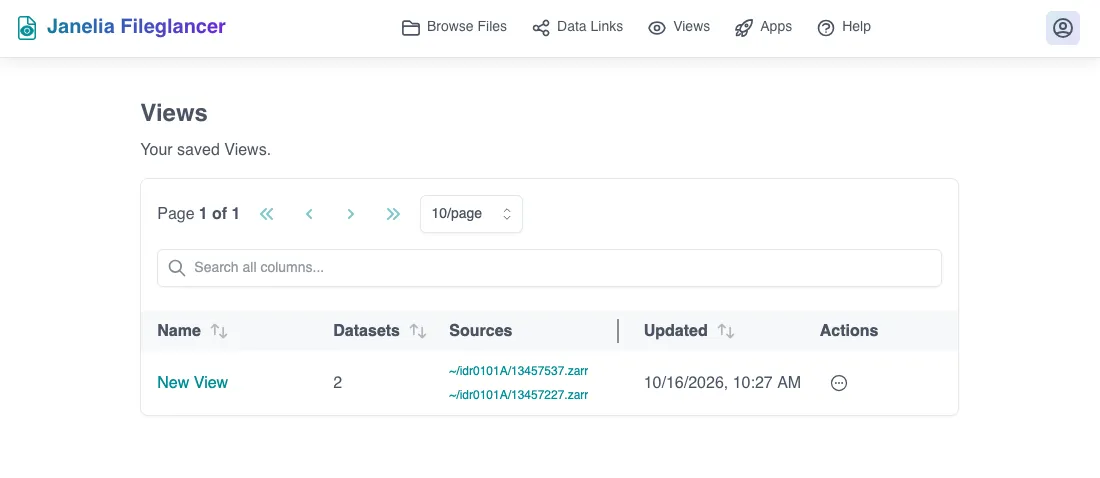
Section titled “Open a View”Click Views in the top navigation bar to see the Views you own. To open one, select Open View from the row’s actions menu.
You can also open a View from the Properties panel on the Browse page. When a dataset is part of any of your Views, the panel lists them under Appears in N Views. Click a name to open the View.
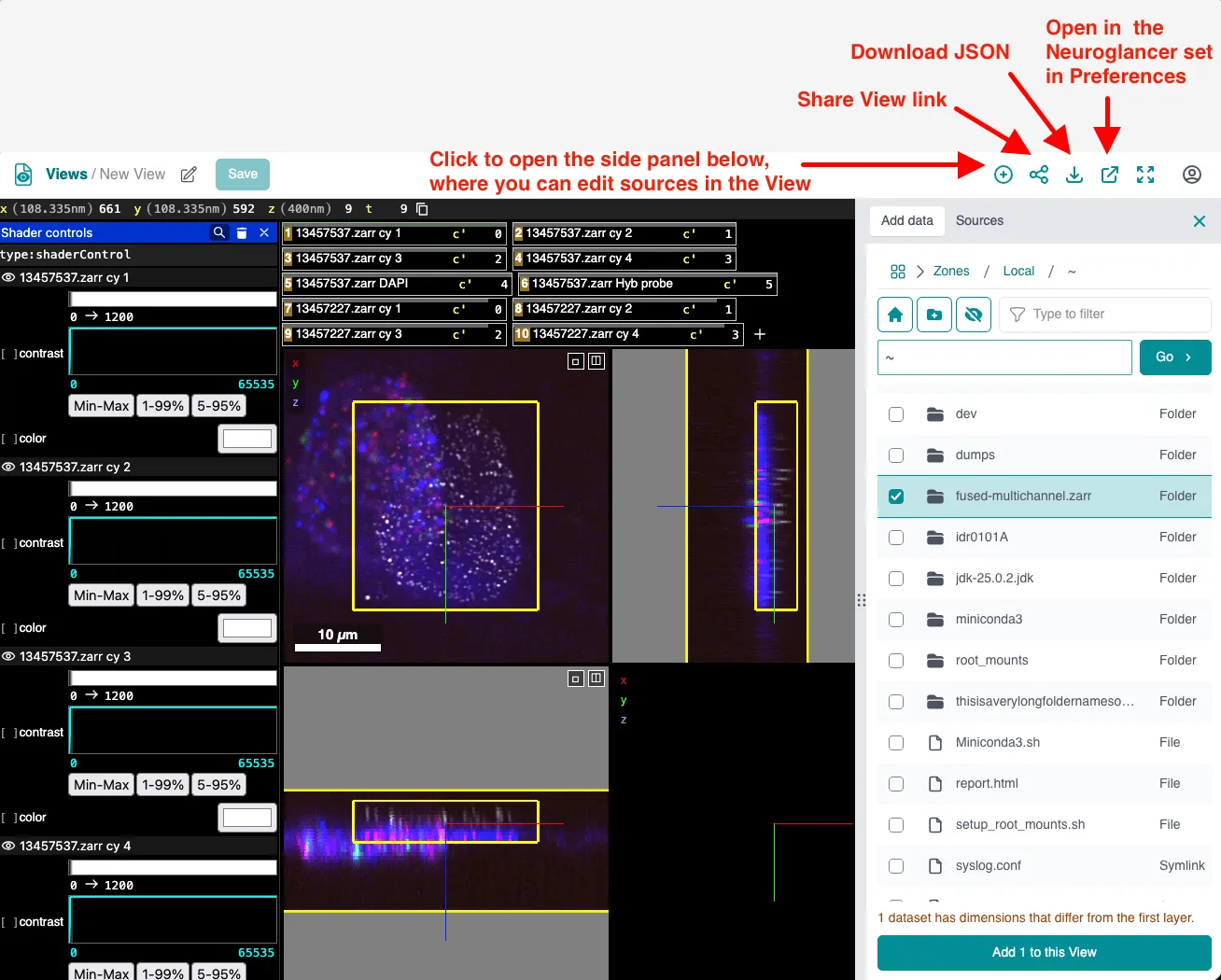
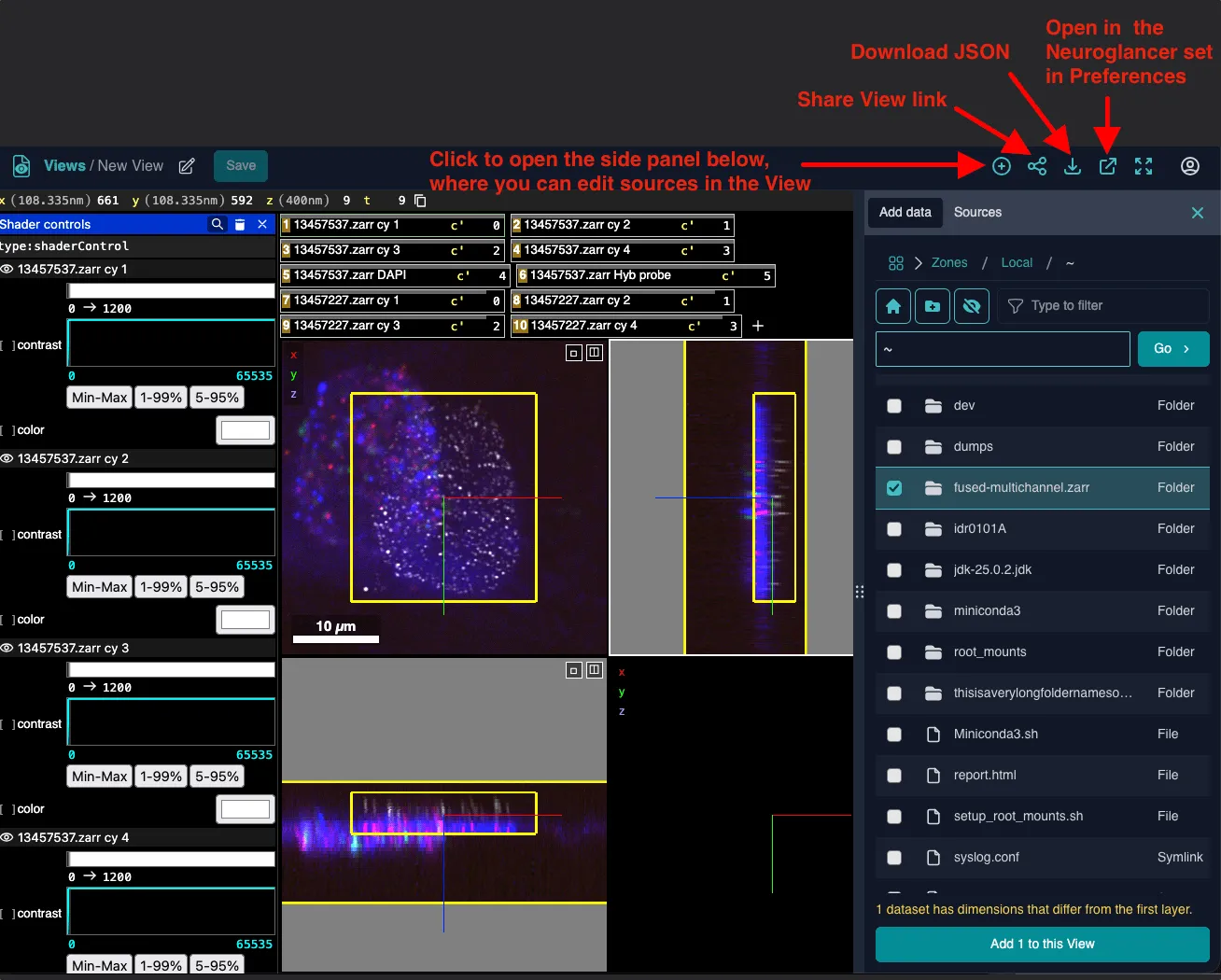
The viewer toolbar has these buttons:
- Add data: Opens the sidebar for adding and removing datasets. Only the View’s owner sees this button.
- Copy link to share: Copies the View’s link to your clipboard.
- Download JSON: Downloads the View’s Neuroglancer state as a JSON file.
- Open in Neuroglancer: Opens the View in a standalone Neuroglancer tab. You can configure whether this is the internal Janelia Neuroglancer deployment or the external appspot deployment on the Preferences page.
- Fullscreen: Expands the viewer to fill your screen.
To return to your list of Views, click Views in the toolbar.
Edit a View
Section titled “Edit a View”Only the owner of a View can edit it. Other people who open the View can explore it, but they can’t save changes.
Change and save the View
Section titled “Change and save the View”-
Make changes in Neuroglancer
Adjust the View in the viewer: change colors or contrast, show or hide layers, move the camera, or change the layout. When you have unsaved changes, the Save button in the toolbar becomes available. -
Click “Save”
Saving updates the View for everyone with its link. To go back to the last saved version instead, click Discard.
If you try to leave the viewer with unsaved changes, Fileglancer asks whether to Save and continue, Continue without saving, or Cancel. Copying the link, downloading the JSON, and opening the View in Neuroglancer ask the same question, because they use the saved View.
Rename the View
Section titled “Rename the View”Click the pencil icon next to the View’s name in the toolbar, type the new name, and press Enter. You can also select Rename from the row’s actions menu on the Views page.
Add datasets
Section titled “Add datasets”-
Click “Add data”
In the viewer toolbar. A sidebar opens on the right side of the viewer. -
Find your datasets
On the Add data tab, browse to the folder that holds your datasets, or type or paste a path in the path field. -
Check the datasets to add
Fileglancer checks each dataset and warns you about any that can’t load as a Neuroglancer layer, or whose dimensions differ from the View’s first layer. -
Click “Add N to this View”
If Fileglancer needs to create Data Links, confirm the prompt. The new layers appear in the viewer. -
Click “Save”
Added datasets aren’t part of the View until you save.
Remove datasets or channels
Section titled “Remove datasets or channels”To remove a dataset in the viewer, open the Sources tab in the sidebar and click the remove icon next to the dataset. Then click Save.
To remove a single channel of a multichannel dataset, expand the dataset on the Sources tab and uncheck the channel. To add the channel back with its settings, check it again. Then click Save. To expand every dataset at once, click Expand all.
To remove datasets from the Views page:
-
Select “Remove datasets”
From the actions menu on the View’s row. -
Check the datasets to remove
Removing a dataset removes all of its layers from the View. The data itself isn’t affected. -
Click “Remove”
The change takes effect right away.
Editing isn’t available
Section titled “Editing isn’t available”If the viewer toolbar shows “Editing isn’t available with this Neuroglancer deployment”, Fileglancer can’t read the viewer’s state, so you can view the View but not edit it. This happens when your Fileglancer deployment serves Neuroglancer from a different site. Contact your Fileglancer administrator.
Share a View
Section titled “Share a View”-
Copy the View’s link
In the viewer, click Copy link to share. On the Views page, you can also select Copy View link to share from the row’s actions menu. -
Send the link
Collaborators who open the link see the View in the Fileglancer viewer. They need to sign in to Fileglancer.
To share a View with someone who doesn’t use Fileglancer, download its JSON state with Download JSON, or open it with Open in Neuroglancer and share that Neuroglancer URL.
Manage your Views
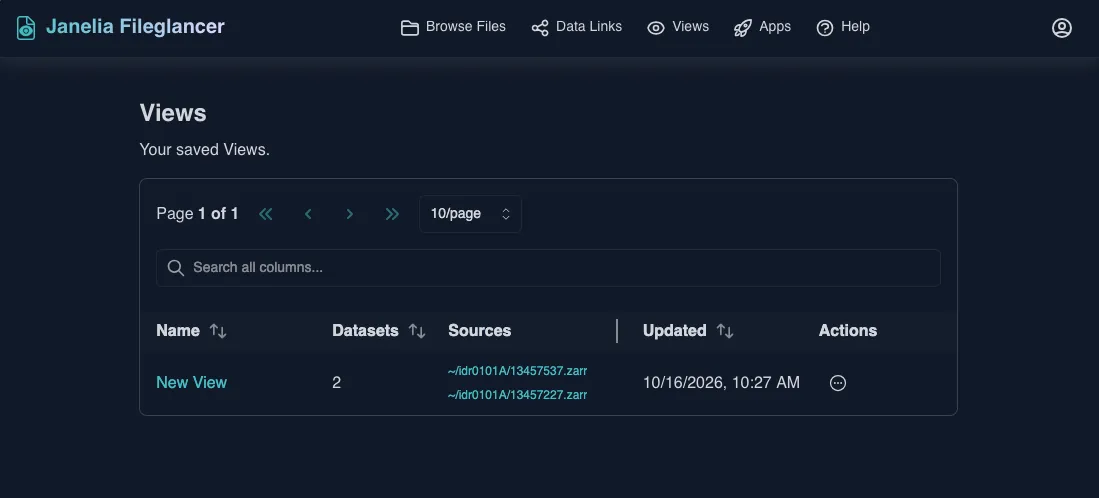
Section titled “Manage your Views”The Views page lists the Views you own. The table shows:
- Name: The name of the View.
- Datasets: The number of datasets in the View.
- Sources: The path of each dataset in the View. A warning icon marks a dataset that can’t load as a Neuroglancer layer, or whose Data Link was deleted.
- Updated: When the View was last saved.
- Actions: Open View, Copy View link to share, Download JSON state, Rename, Remove datasets, and Delete.
To delete a View, select Delete from the actions menu and confirm. The View’s link stops working. Its Data Links and data aren’t affected.
Fix broken sources
Section titled “Fix broken sources”A View loads each dataset through a Data Link. If you delete a Data Link that a View uses, that dataset can’t load in the View. Fileglancer warns you before you delete a Data Link that any of your Views use.
To fix a broken source, do one of the following:
- Create a new Data Link for the dataset: Fileglancer relinks your broken Views on that dataset automatically and shows “Relinked N broken View(s)”.
- Relink from the Views page: In the Sources column, click Relink next to the broken source. If you already have another Data Link for the dataset, Fileglancer uses it. Otherwise, it offers to create one.
- Relink from the viewer: When you open a View with broken sources, a banner lists them with a Relink button. Save or discard any unsaved changes first.
If Fileglancer can’t relink a source, you can remove it from the View, or recreate the View.
Troubleshooting
Section titled “Troubleshooting”A View shows “View not found”
Section titled “A View shows “View not found””The View was deleted, or the link was copied incorrectly. Ask the View’s owner for a new link.
A dataset doesn’t appear as a layer
Section titled “A dataset doesn’t appear as a layer”- Check the dataset’s icon in the Layer Cart or the Sources list. Plain folders and other formats that Neuroglancer can’t read are listed as sources only.
- If the View has more than four layers, the layer might be archived. For a channel of a multichannel dataset, check it in the Sources tab of the viewer sidebar. For any other layer, look for it in the Neuroglancer layer list.
- If the source has a warning icon in the Sources column of the Views page, its Data Link was deleted. See Fix broken sources.
Layers don’t line up
Section titled “Layers don’t line up”The View takes its dimensions from its first dataset. Datasets with different dimensions or units might not line up. Check for the dimension warning in the Layer Cart before you create or add to a View, and expand a dataset to see its full dimensions. In an open View, expand a dataset on the Sources tab of the viewer sidebar.
Collaborators can’t load the data
Section titled “Collaborators can’t load the data”- Confirm that they’re on the Janelia network, or that the data is in a
data_externalfolder. - Check the Sources column on the Views page for broken sources.
Neuroglancer Short Links
Section titled “Neuroglancer Short Links”Views replace Neuroglancer Short Links. Existing short links still work, and the old NG Links page now opens the Views page.
Best practices
Section titled “Best practices”- Use descriptive names: A clear name helps you and your collaborators find the View later.
- Check dimensions first: Put the dataset whose dimensions you want the View to use first in the cart.
- Save before you share: Collaborators see the last saved version of the View.
- Keep Data Links: Views depend on Data Links. Before you delete a Data Link, check which Views use it.
- Clean up old Views: Delete Views you no longer need from the Views page.
Related features
Section titled “Related features”- Creating Data Links: Learn about the Data Links that Views use to load data.
- Navigating Files: Find and browse your imaging data in Fileglancer.